Web interface guide
The console combines the controlled computer's picture, input tools and device settings. Distinguish the two devices: ATX actions affect the computer; a maintenance reboot restarts BliKVM.
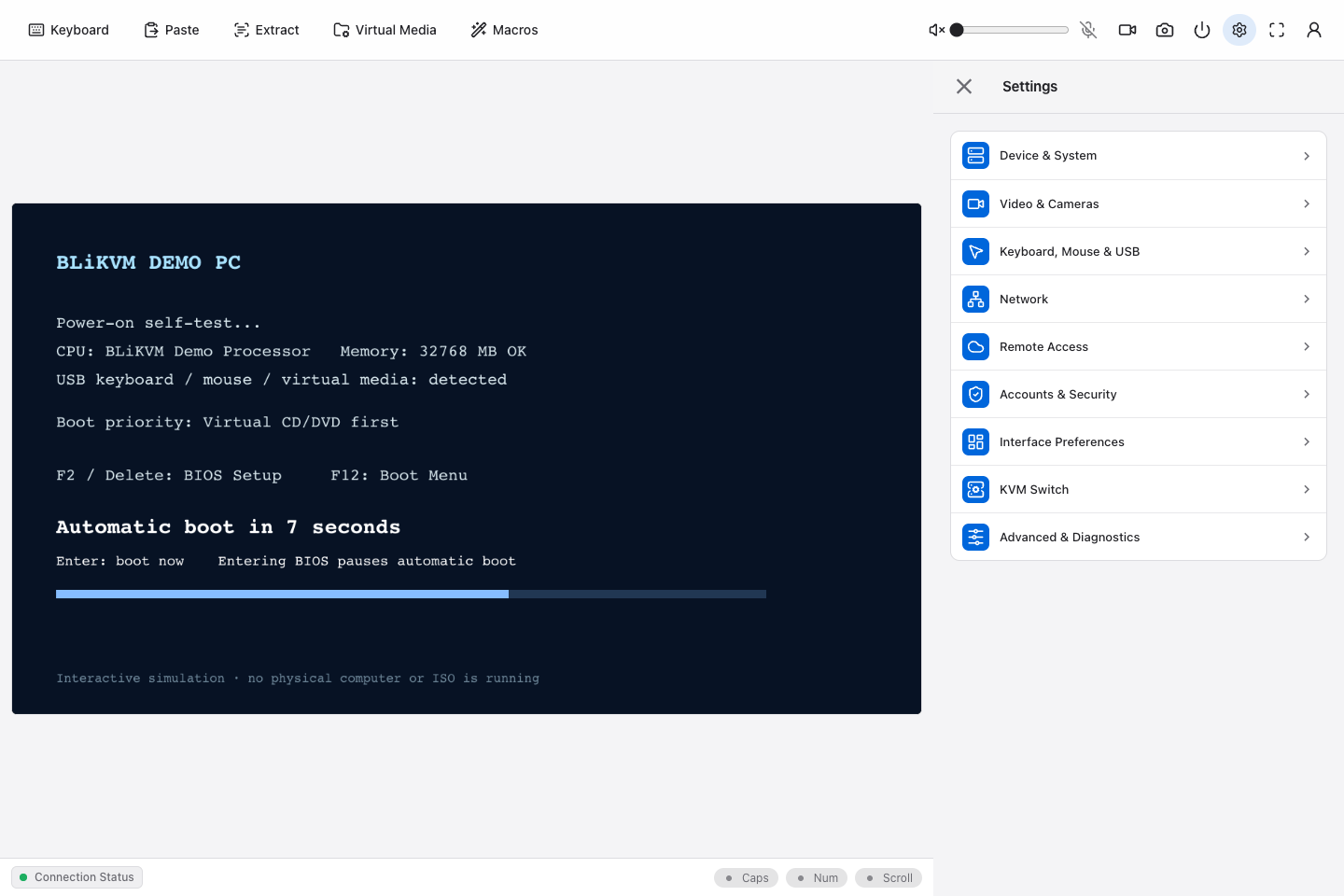
Demo screenshot: actual menus depend on device capabilities and account permissions.
Toolbar: everyday tasks
| Tool | Purpose | Verify the result |
|---|---|---|
| Keyboard | Send keys or combinations with the on-screen keyboard. | The computer receives the selected keys. |
| Paste | Type text into the focused program through keyboard emulation. | Test a short passage in an editor before sending long commands. |
| Text extraction | Recognize text in a selected area of the picture. | Check the recognized text before copying or using it. |
| Virtual media | Present an image on BliKVM as USB storage. | The computer detects a disk or CD/DVD. |
| Keyboard macros | Run a configured input sequence. | Check the sequence and window focus before execution. |
| Screenshot / recording | Save a frame or use browser-supported recording. | Inspect the downloaded file; see video modes. |
| ATX power | Send power or reset actions over optional ATX wiring. | Check the computer's power state and the requested action. |
| Settings / fullscreen / user | Configure the device, change layout or manage the account. | Opening settings does not itself change the computer's OS. |
Paste is keyboard input, not a shared clipboard or file transfer. Results depend on keyboard layout and focus. OCR processes video pixels; it does not read the computer's files or clipboard. Audio and camera tools also depend on configuration, permissions and browser support.
Settings: find an entry by task
Open the gear icon, choose a group and enter a function. Use the back arrow to return.
| Group | Typical tasks |
|---|---|
| Device & System | Device information, fan, display, updates and maintenance. |
| Video & Cameras | HDMI and supported camera functions. |
| Keyboard, Mouse & USB | Input behavior and USB device functions. |
| Network | BliKVM network connections. |
| Remote Access | Supported remote access services. |
| Accounts & Security | Accounts, passwords, 2FA and IP rules. |
| Interface Preferences | Browser interface preferences. |
| KVM Switch | Select or configure a supported external switch. |
| Advanced & Diagnostics | Advanced settings and diagnostics. |
Some actions require an administrator. Operators can receive individual feature permissions; viewers have no keyboard or mouse control. See Accounts and security.
A typical session
- Sign in, verify the computer's picture and click the video area before input.
- For input problems, check keyboard, mouse and USB settings first.
- Use toolbar tools for temporary tasks such as paste and virtual media, and settings for device configuration.
- Sign out through the user menu before leaving a shared management computer.
The current software shares input between authorized users. Coordinate with other users before acting; no exclusive-control acquisition or takeover step is required.
Connection failures
Page access, video and USB input are separate checks. A black screen may come from HDMI, ICE errors from the media network, and failed input from USB or permissions. Start with the first-steps checklist, then use the relevant function guide.