Remote phone control
You can use a compatible phone as the target device. BliKVM captures the phone's HDMI output and sends keyboard and mouse input back over USB. The test video shows an iPhone opening apps and entering text from the BliKVM browser console.
Check the phone and adapter
- Use a phone that supports wired video output and USB keyboard and mouse input at the same time. For a USB-C setup, use a compatible dock with HDMI output and a USB data port. Test both functions together with a monitor and a wired mouse first.
- On iPhone, check wired display support for your model. To use a mouse pointer, turn on Settings → Accessibility → Touch → AssistiveTouch. Apple's pointer setup guide explains how to connect it.
- On Android, check the phone maker's display and USB input support for the specific model. The external output may show a desktop mode, such as Samsung DeX.
Connect and test
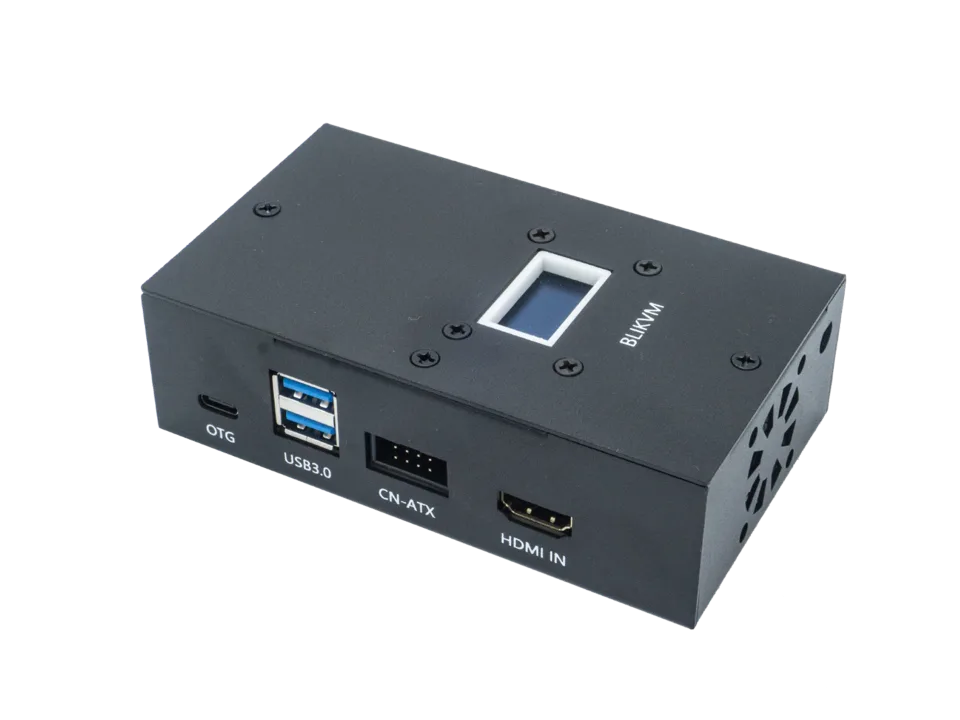
| Connection | Cable path |
|---|---|
| Phone to dock | Phone's USB-C port → dock's USB-C host connection |
| Video | Dock's HDMI output → BliKVM's HDMI input |
| Keyboard and mouse | BliKVM's USB device / OTG port ↔ dock's USB data port |
- Power BliKVM as shown in its model guide. If the dock needs power, connect a compatible charger to its power input.
- Unlock the phone locally and follow any prompts for the display or USB accessory. Open BliKVM in a browser on the same network and check the phone image.
- Check that keyboard and mouse are enabled in USB functions, then try moving the pointer, opening an app, and typing into a text field. The BliKVM account needs input permission.
- If the image works but the pointer does not, check the USB data cable and that the phone recognizes a wired mouse through the dock. On iPhone, check AssistiveTouch. If the cursor moves incorrectly, try relative mouse mode.
For a blank screen, test the dock's HDMI output on a monitor first, then check BliKVM's video input. Test the actual apps you plan to use, including what happens after the phone locks or reconnects.
If you're using a phone browser to operate BliKVM, see mouse modes and touch input for the browser's input settings.